

Pomio App
Pomio App on your phone
Use Pomio CRM like an app on your iPhone or Android device.
Works in the browser — feels like an app
Pomio CRM works in your phone browser. After you add it to your home screen, it opens like a normal app: from your home screen, without typing the URL every time.
- Among your other apps — an icon on your home screen.
- Open quickly — one tap — no address-bar hunting.
- No URL typing — you go straight to your CRM.
- Same secure environment — sign-in, permissions and security stay the same as in the browser.
iPhone (Safari)
Use Safari for the most reliable install.
Follow these steps to put Pomio CRM on your home screen. Use Safari and first open app.pomiocrm.com.
-
Open Safari at app.pomiocrm.com
Open Safari and go to https://app.pomiocrm.com. Sign in if asked — so your CRM is ready on the home screen.
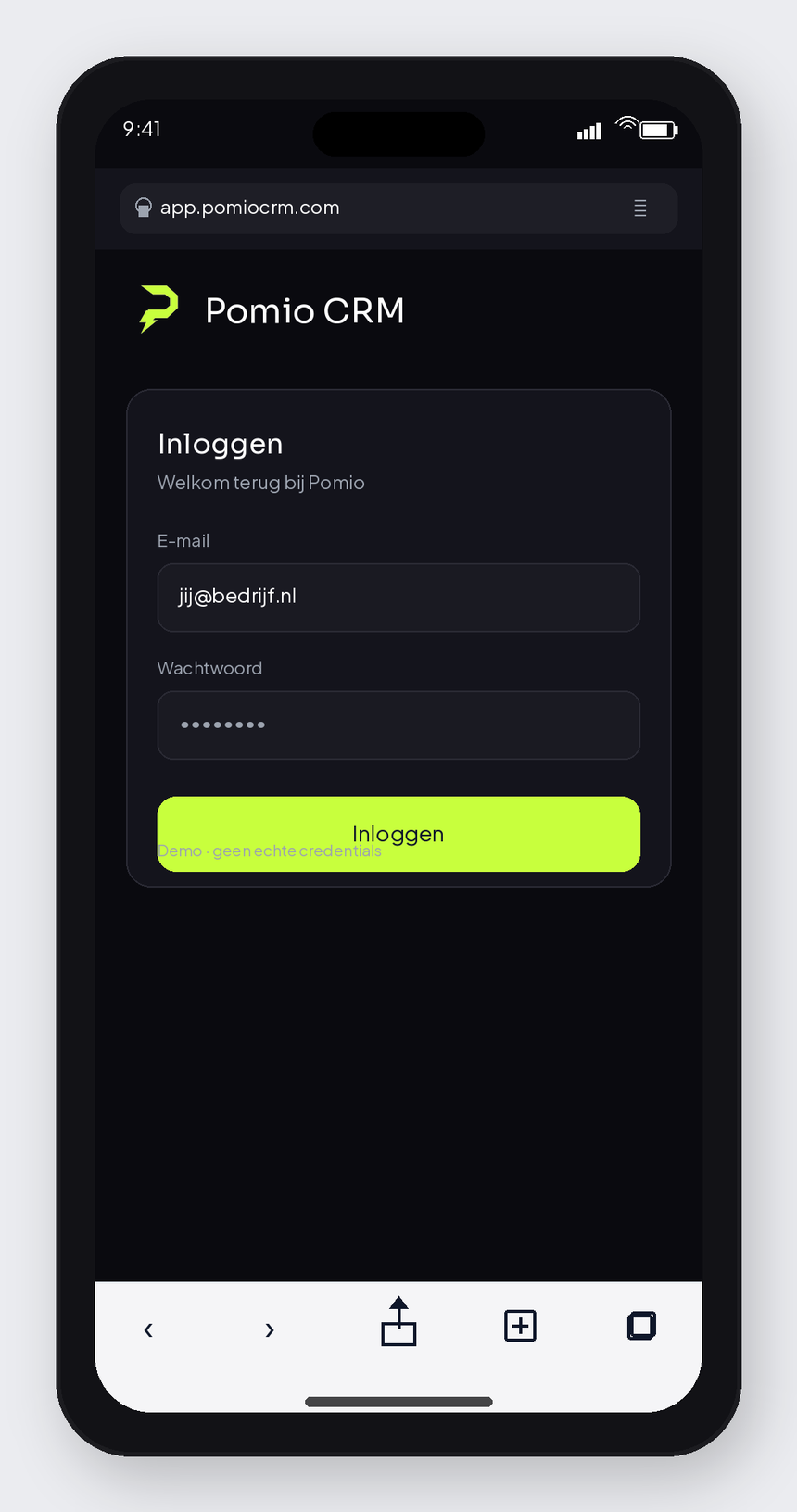
Step 1 — Safari + CRM -
Tap the Share icon
At the bottom of Safari, tap the Share icon: a square with an arrow pointing up.
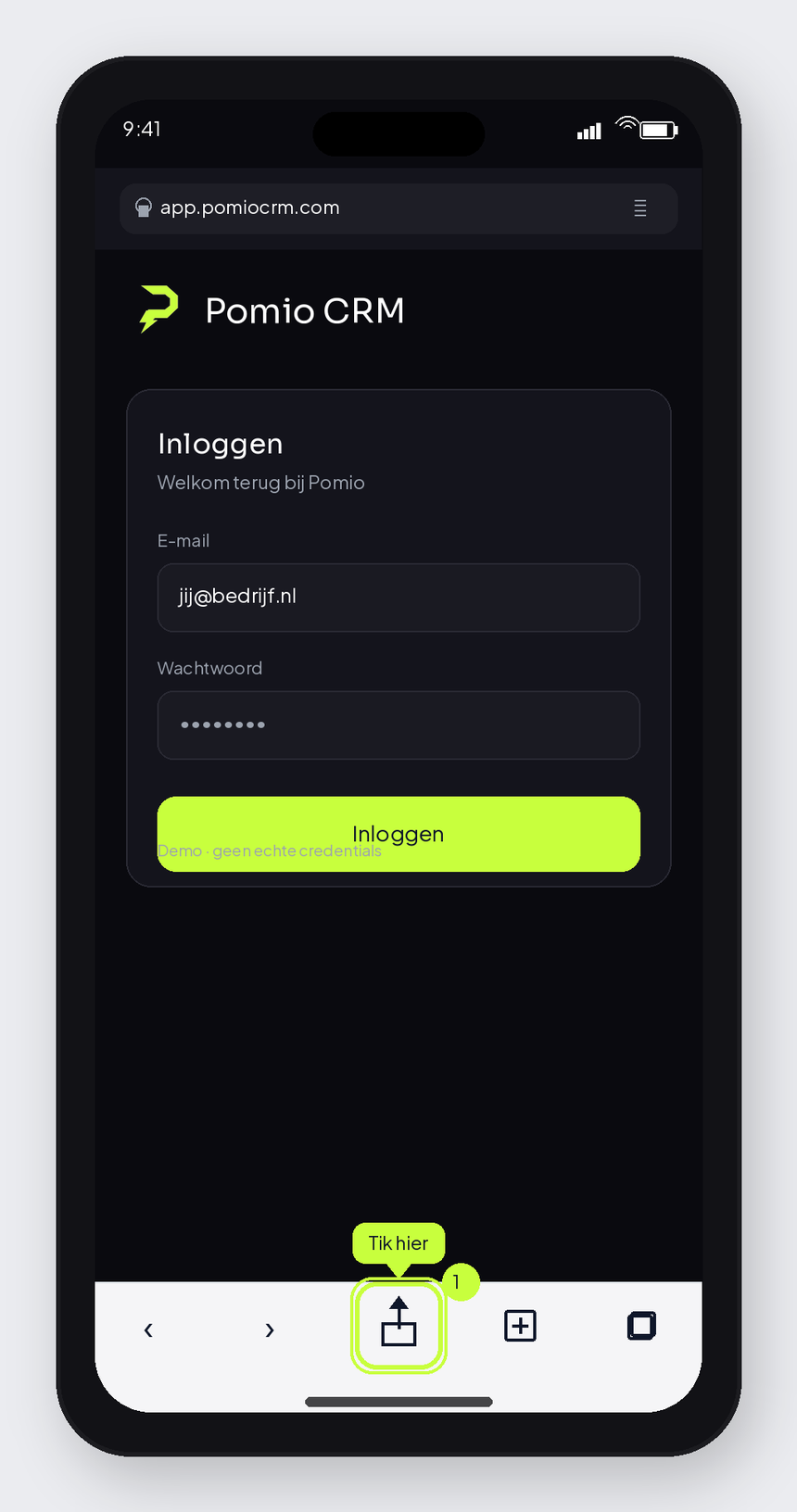
Step 2 — Share -
Choose “Add to Home Screen”
Scroll the share sheet and tap Add to Home Screen (Dutch iOS may still show “Zet op beginscherm”).
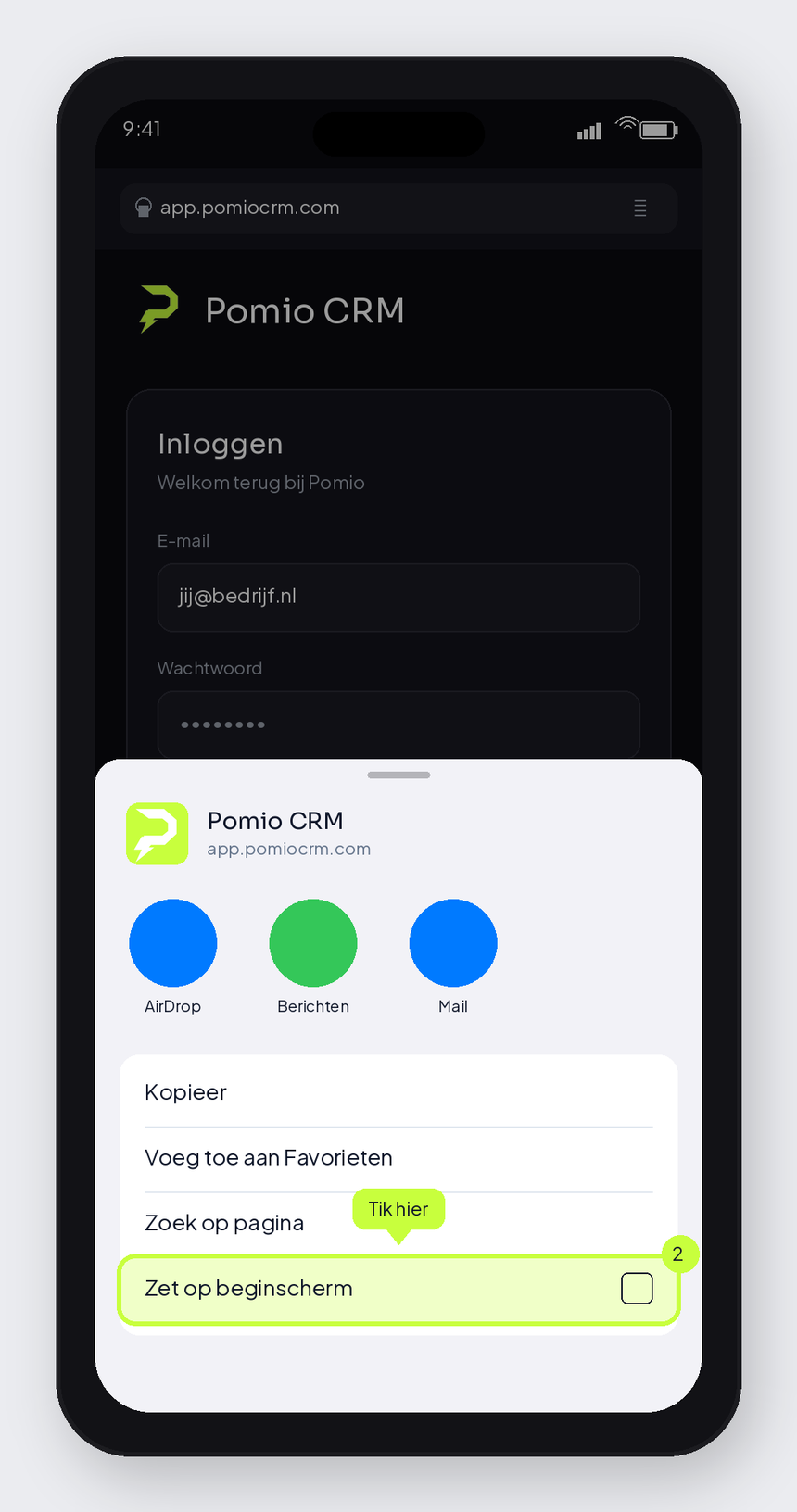
Step 3 — Home Screen -
Check the name and add
Leave the name as Pomio CRM and tap Add.
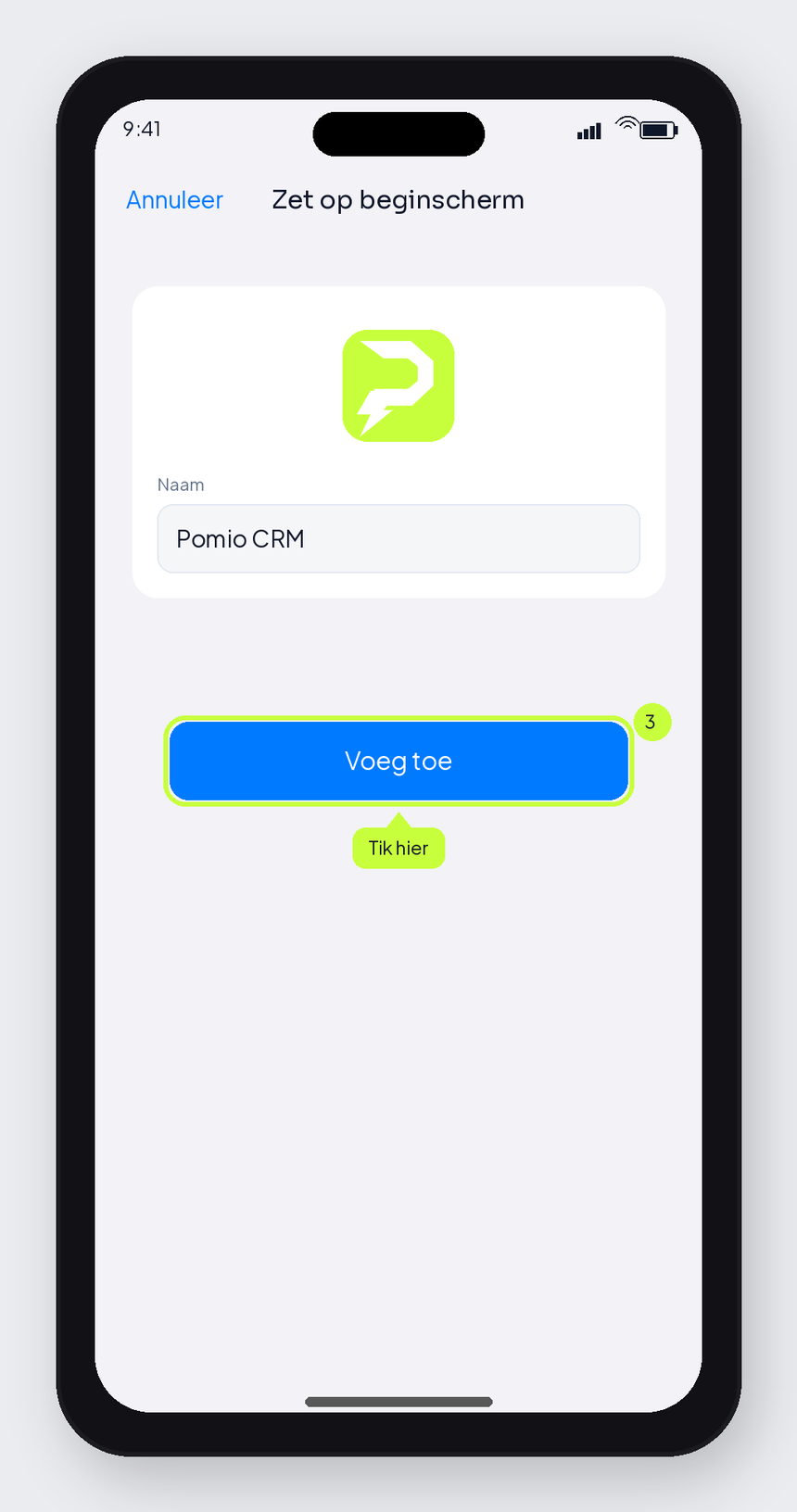
Step 4 — Add -
Open from your home screen
The Pomio CRM icon sits among your other apps. Tap to open your CRM — without typing a URL.
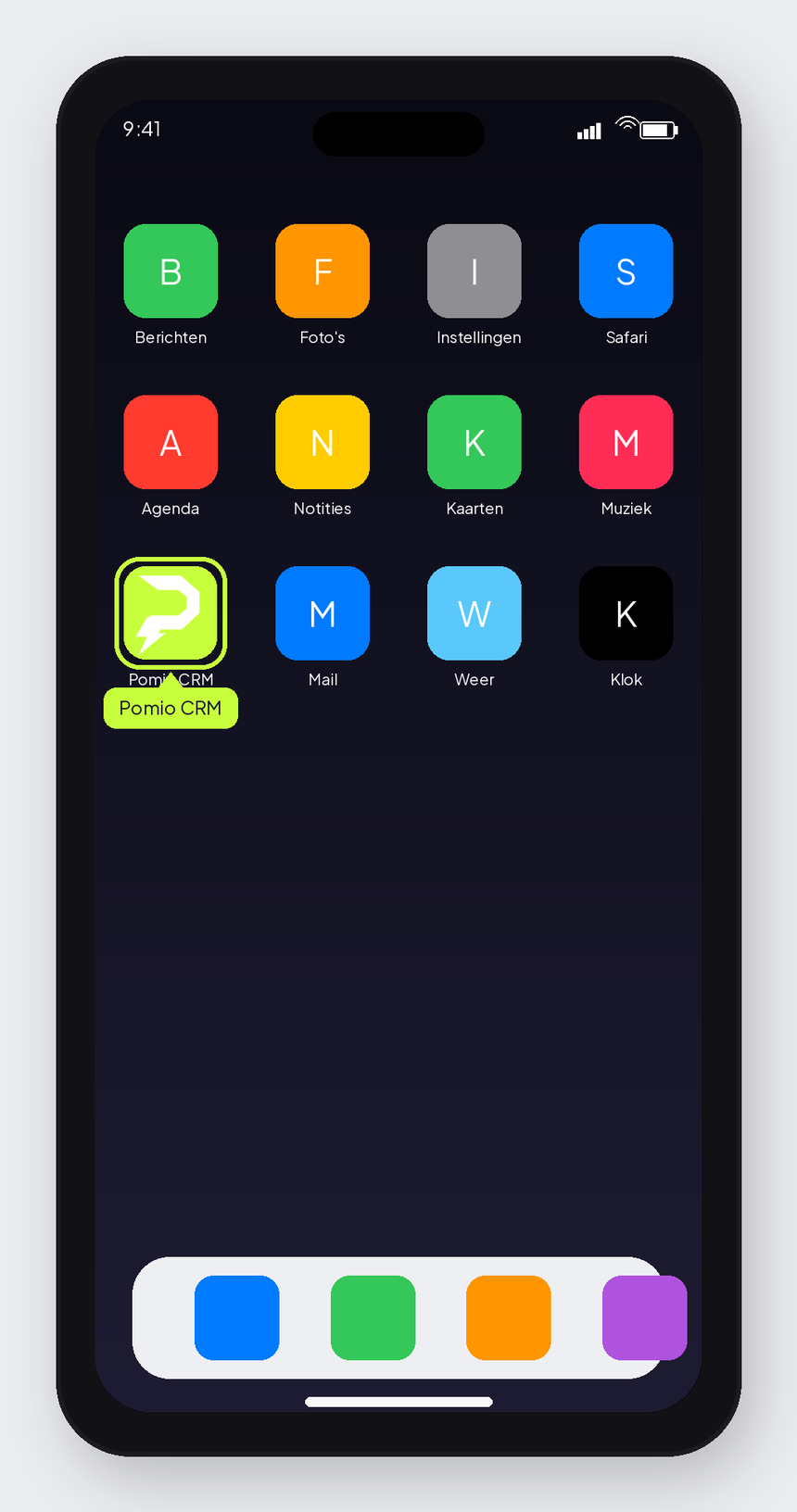
Step 5 — Done
Android (Chrome)
Use Google Chrome on Android.
Install Pomio CRM via Chrome. Choose Install app in the menu (not the older “Add to Home screen” wording).
-
Open Chrome at app.pomiocrm.com
Open Google Chrome and go to https://app.pomiocrm.com. Sign in if needed.
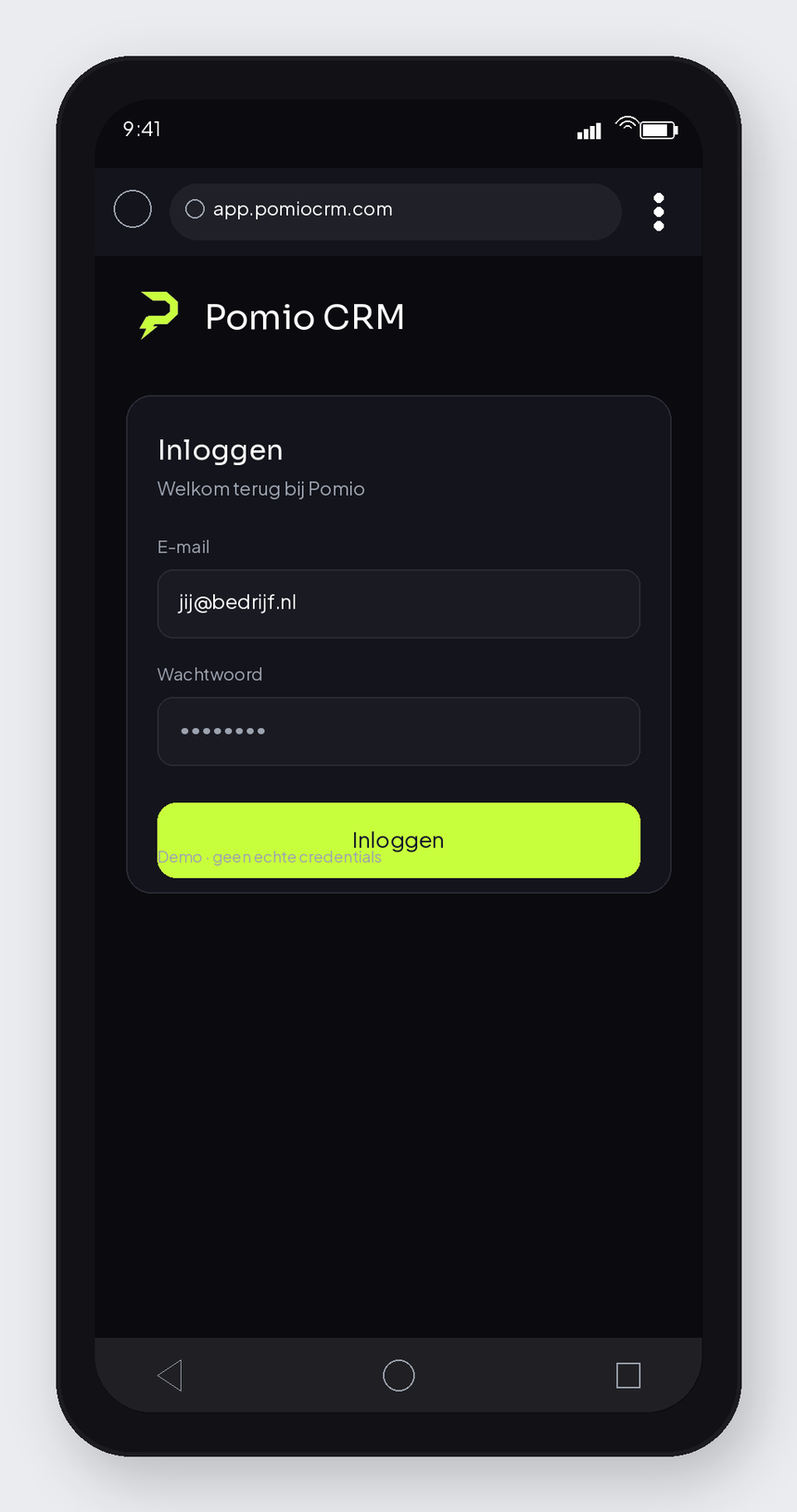
Step 1 — Chrome + CRM -
Open the ⋮ menu
Tap the three dots ⋮ in the top right.
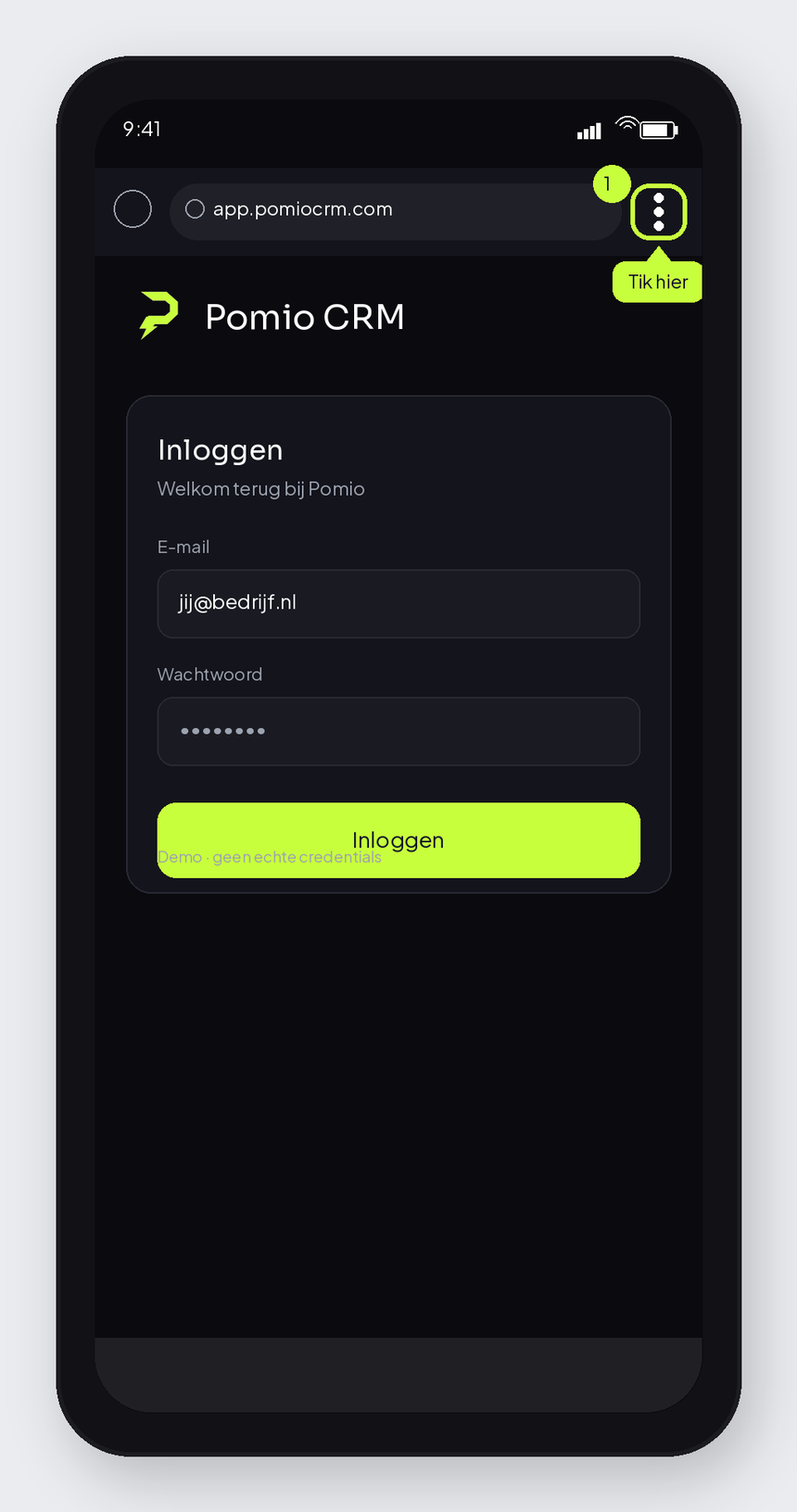
Step 2 — Menu -
Choose “Install app”
Tap Install app in the Chrome menu (Dutch UI may show “App installeren”).
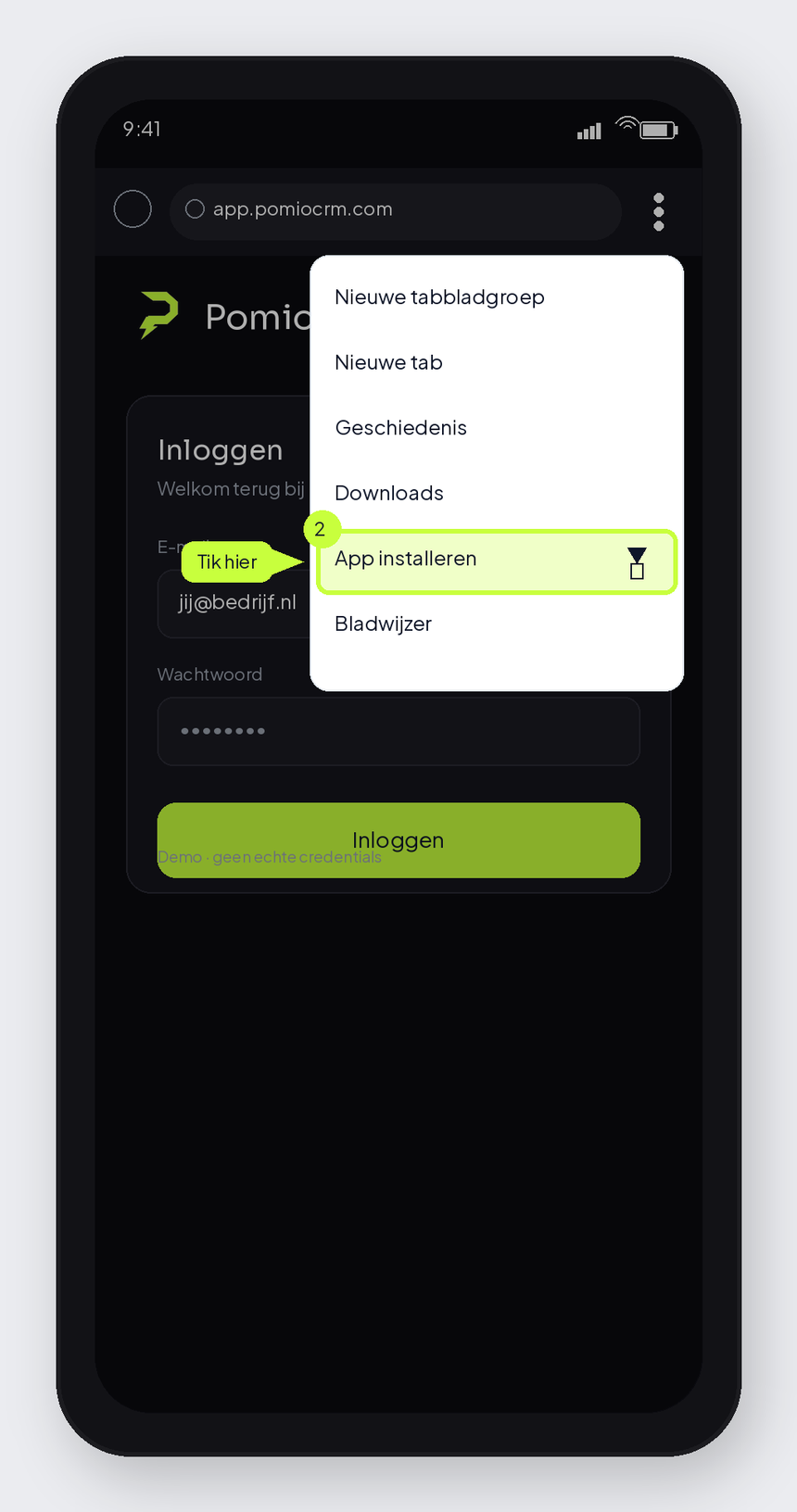
Step 3 — Install app -
Confirm with Install
Confirm in the Install app? dialog with Install.
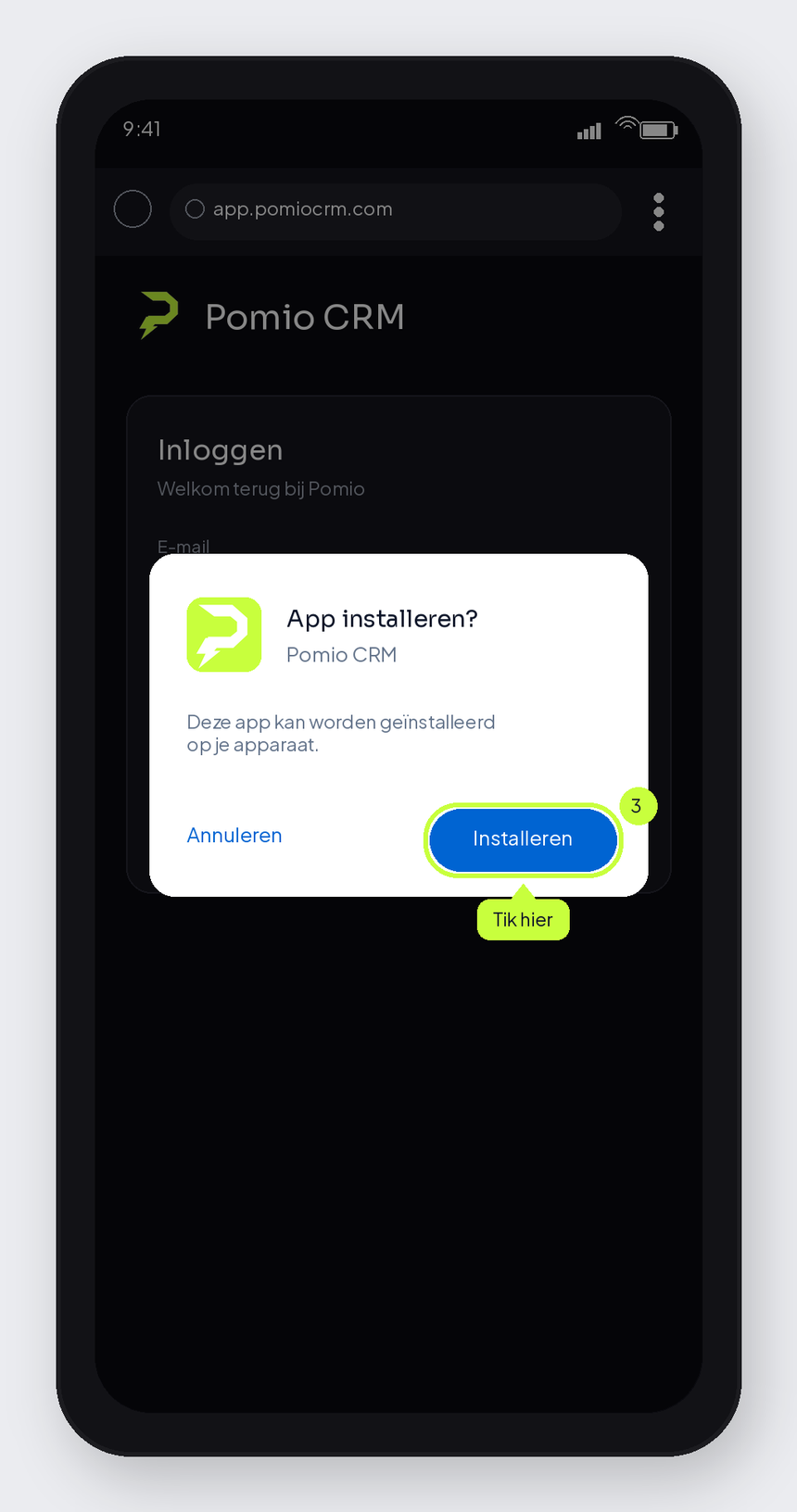
Step 4 — Confirm -
Open from your home screen
The Pomio CRM icon appears among your apps. Tap to open your CRM.
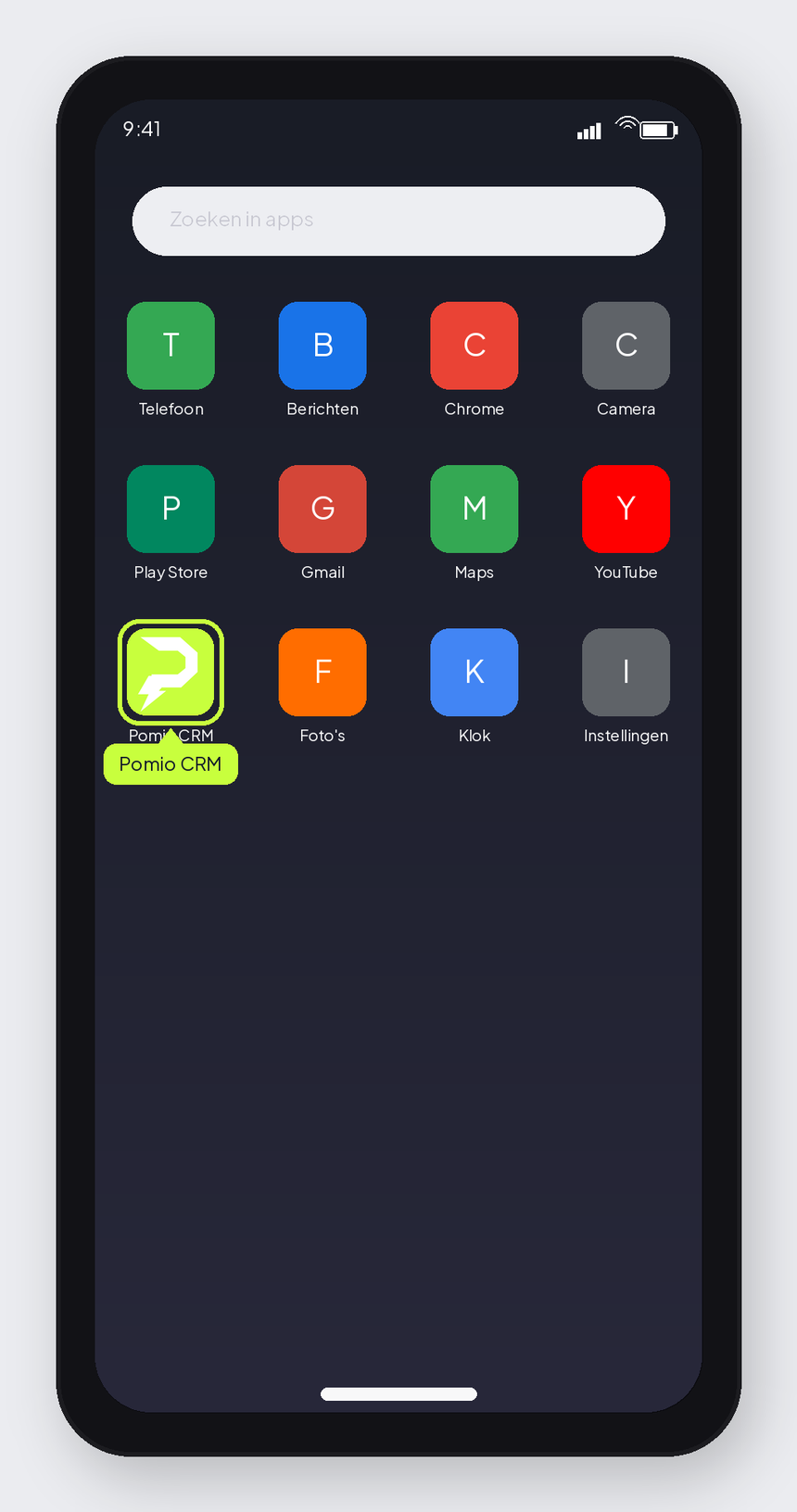
Step 5 — Done
Having trouble?
No “Add to Home Screen” on iPhone
Use Safari (not Chrome or Firefox). Scroll further in the share sheet — the option is sometimes under “Edit Actions” or further down.
No “Install app” on Android
Open the ⋮ menu opnieuw en zoek naar App installeren. Update Chrome via de Play Store als de optie ontbreekt. Op sommige toestellen staat nog de oudere tekst Toevoegen aan startscherm — die werkt ook.
Icon disappears or does not open correctly
Remove the icon, open https://app.pomiocrm.com again and repeat the steps. Stay signed in before you add it.
Frequently asked questions
Is this a real app from the App Store or Play Store?
Nee. Je zet Pomio CRM vanuit de browser op je beginscherm. Het werkt als een app-icoon, maar je downloadt niets uit een store.
Heb ik een apart account nodig?
Nee. Je gebruikt je bestaande Pomio CRM-account. Log in op app.pomiocrm.com zoals je gewend bent.
Hoe krijg ik updates?
Updates verschijnen automatisch wanneer je Pomio CRM opent — je hoeft niets handmatig te updaten in een store.
Werkt dit ook op een tablet?
Ja. Op iPad gebruik je Safari en “Zet op beginscherm”. Op Android-tablets Chrome en “Toevoegen aan startscherm” of “App installeren”.
Can I keep using the browser?
Absoluut. Beginscherm-installatie is optioneel. Je kunt Pomio CRM altijd gewoon in Safari of Chrome openen.
Ready to put Pomio CRM on your phone?
Open de app-omgeving, log in, en volg de stappen voor iPhone of Android hierboven.